Switching
How to switch from BinderPOS: export your stock and bring it across
Published October 21, 2026
Disclosure: we make Game Store Software. The BinderPOS steps below come from TCGplayer's own help articles, linked and dated; we don't have a BinderPOS account, so we tested our side with a file in the column layout TCGplayer documents.
1. Export your products from BinderPOS
From TCGplayer's help article on exporting BinderPOS CSVs (read October 21, 2026):
- In your BinderPOS portal, go to Products.
- Fill in your filters (for example game, product type and set) and apply them.
- Click Export Search in the top right.
- Check your store's primary email: the CSV is sent there. If a pop-up blocker stops the download, paste the link from the email into a new tab.
Export one game or set at a time if your inventory is large; the file only holds what your search matched.
2. Change five column names and add a category
TCGplayer's CSV format article lists the columns a BinderPOS file uses. Open the file in Excel or Google Sheets and rename these:
| BinderPOS column | Rename to |
|---|---|
| Card Name | title |
| Set Name | platform |
| Variant Title | condition |
| In stock | qty |
| Current Price | price |
Then:
- Add a column called
categoryand fill it withtrading_cardfor singles orsealed_tcgfor sealed product. Without it, rows are read as video games and card conditions are rejected. - Use your store's condition names. A new store's card conditions are NM, LP, MP, HP and DMG, so change "Near Mint" to NM, "Lightly Played" to LP, and so on.
- Leave the other columns. Barcode is read as a UPC; Game Type, Binder ID and the rest are ignored.
3. Preview, then import
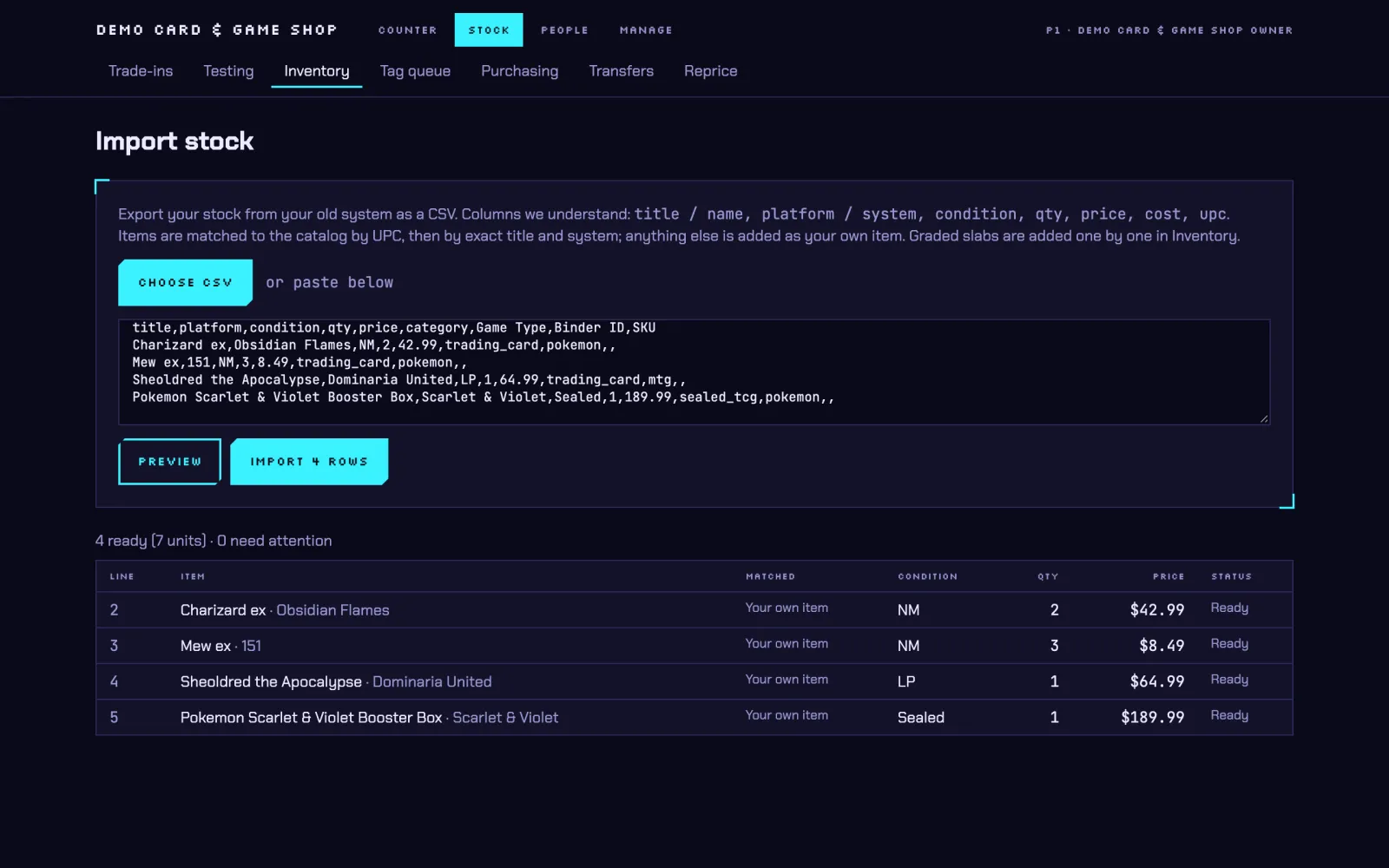
In Game Store Software, open Add your stock from the setup checklist (or the Import stock screen), choose the CSV and press Preview. Each row shows whether it matched the catalog or comes in as your own item, and anything that needs fixing. Fix those rows in the sheet, preview again, then press Import. Each row is saved on its own, so one bad row doesn't stop the rest.
Before you cancel BinderPOS
The import brings in stock only. Download the customer, order and buylist records you want to keep from BinderPOS and Shopify, and leave Shopify running until your new online store is live.
Still deciding?
See Game Store Software vs BinderPOS, the BinderPOS review, and how switching works.
Published prices
| Product | Plans |
|---|---|
| Game Store Software (ours) | Starter $79 · Pro $149 / month, CAD |
| BinderPOS |
Facts checked October 21, 2026. Spot something out of date? Tell us. →
Questions
Can Game Store Software import a BinderPOS CSV directly?
Not quite as it comes out. BinderPOS names its columns Card Name, Set Name, Variant Title, In stock and Current Price; rename those five and add a category column, and the file imports. We tested this on a local build on October 21, 2026.
Where does the BinderPOS export go?
TCGplayer's help article says the CSV is emailed to the main email address on your BinderPOS account, so make sure you can get into that inbox. It may land in spam.
What about my Shopify store?
Game Store Software has its own online store on the same stock as the till, so you don't need Shopify underneath it. Keep Shopify running until your new store is live, then cancel.
What doesn't come across?
The import brings in stock. Customers, store credit balances and sales history stay in your old system, so export what you need to keep from BinderPOS and Shopify before you cancel.
30-day free trial. No card needed. Canadian stores sign up today; US stores join by invite.
Running a store in the US? Request an invite